Prerequisites
- CherryStudio installed
- A CometAPI account with an active API key
Setup
Get your CometAPI API key
Log in to the CometAPI dashboard. Click Add API Key and copy your key and base URL (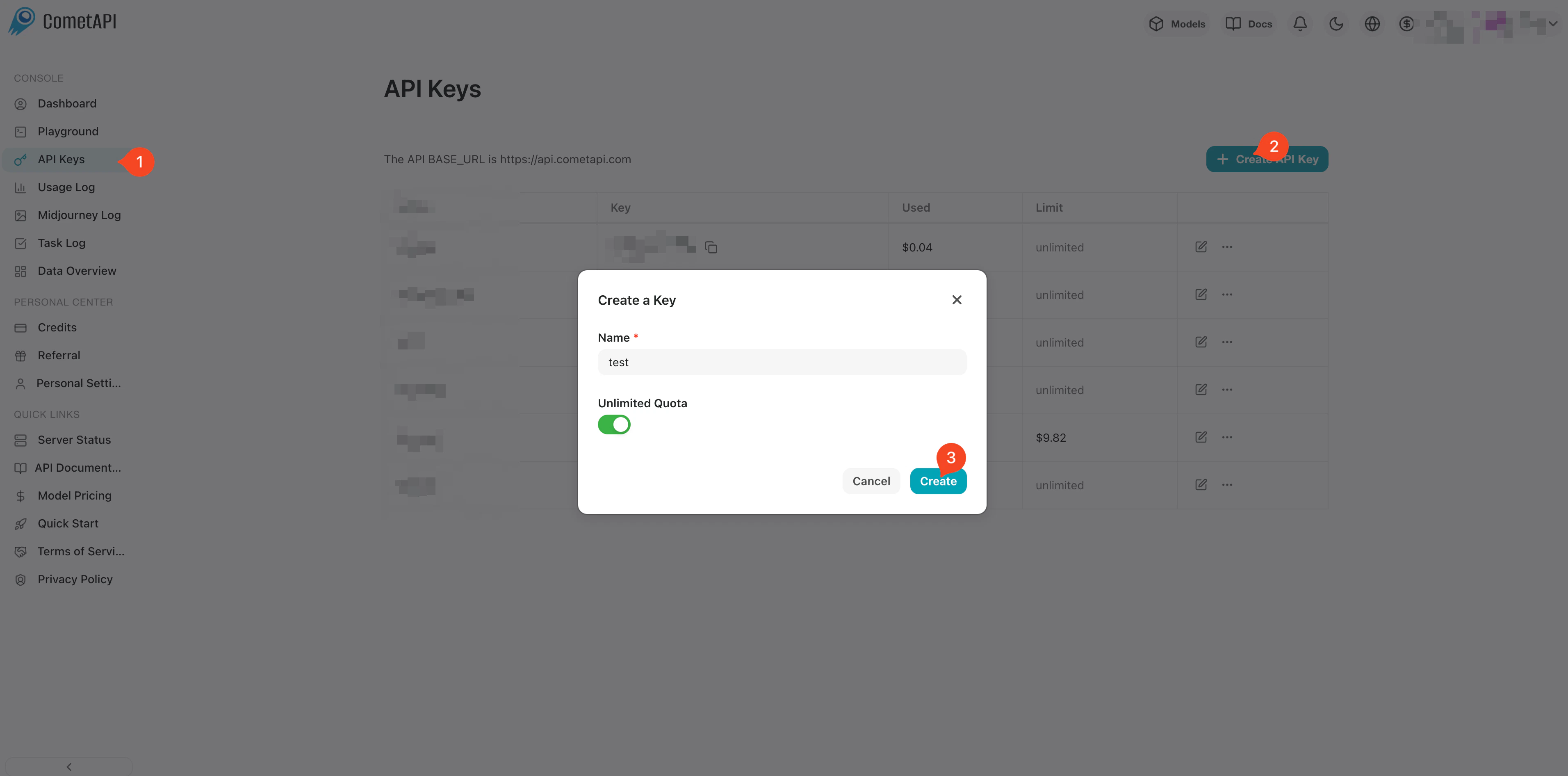
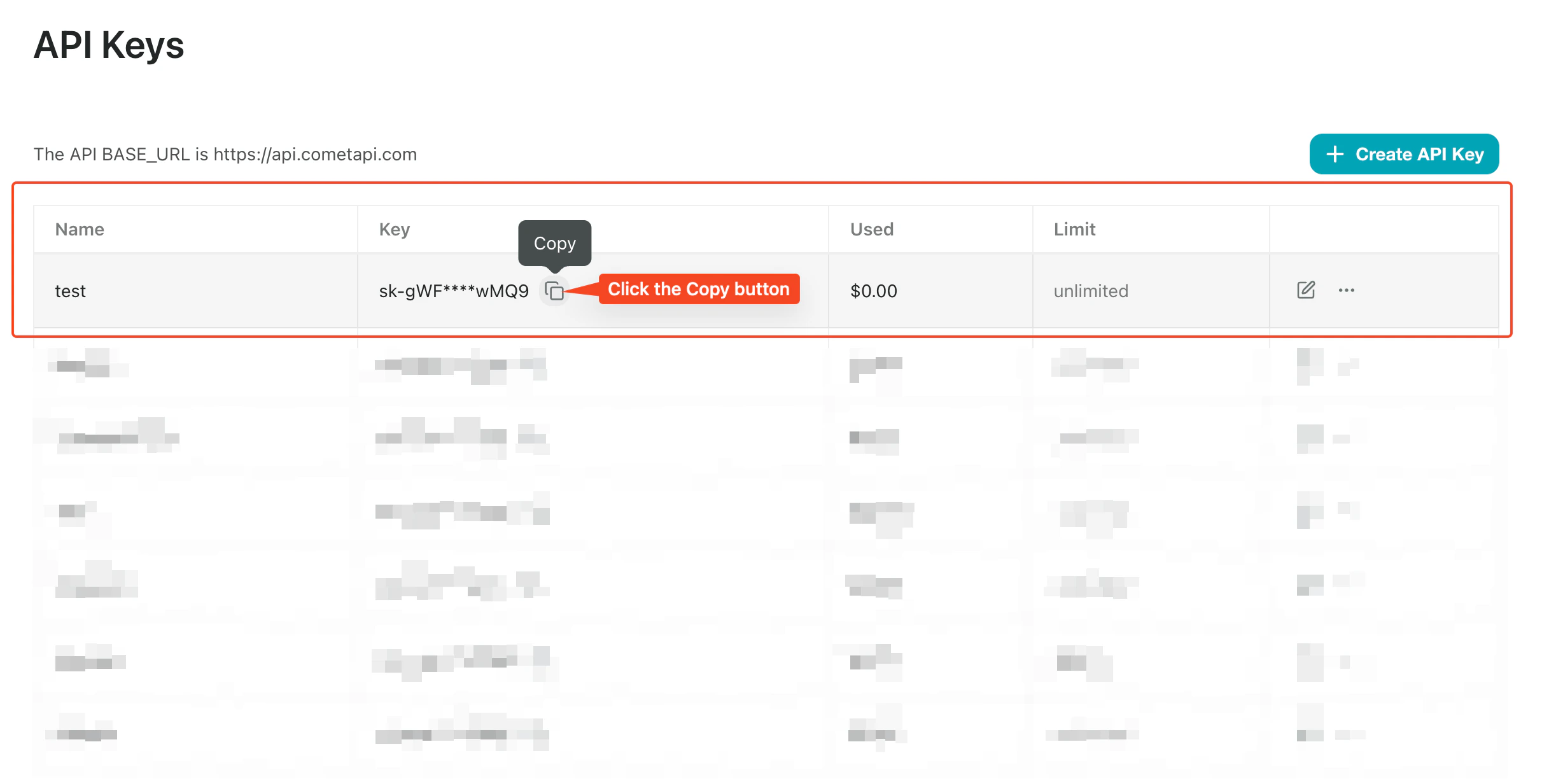
https://api.cometapi.com).Add CometAPI as a provider
Open CherryStudio Settings → Model Services. Click Add, give the provider a name (e.g., 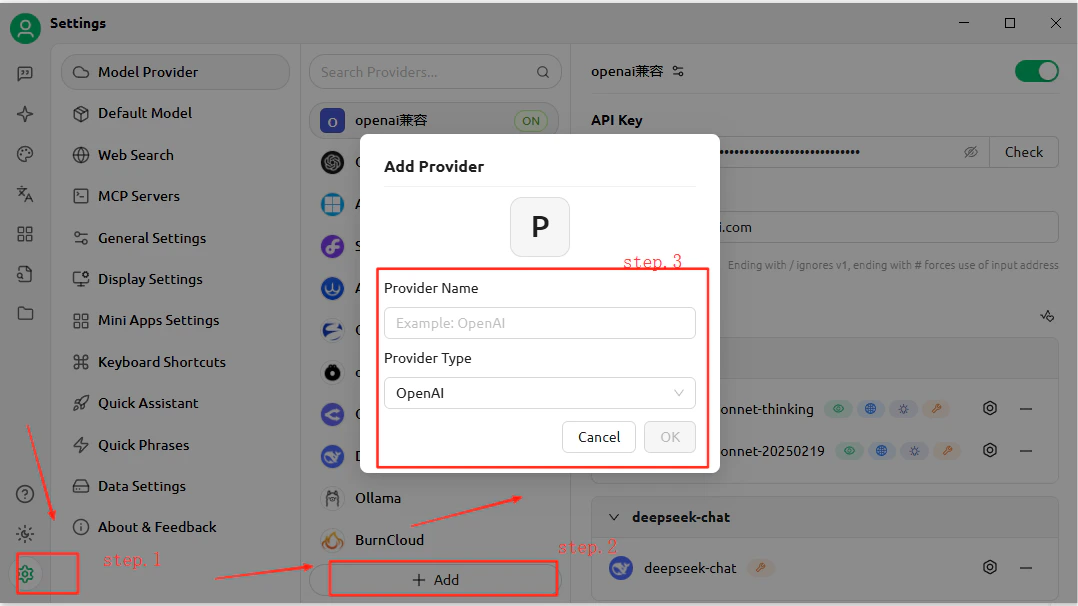
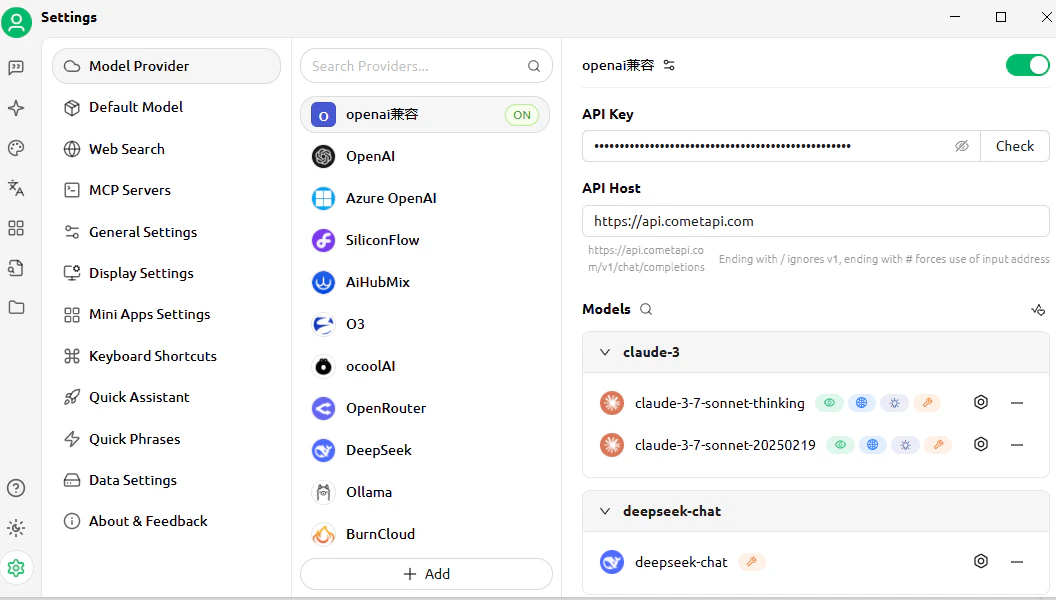
CometAPI), select OpenAI as the provider type, and click OK. Enter https://api.cometapi.com in the API Address field and paste your key into the Key field.Add models
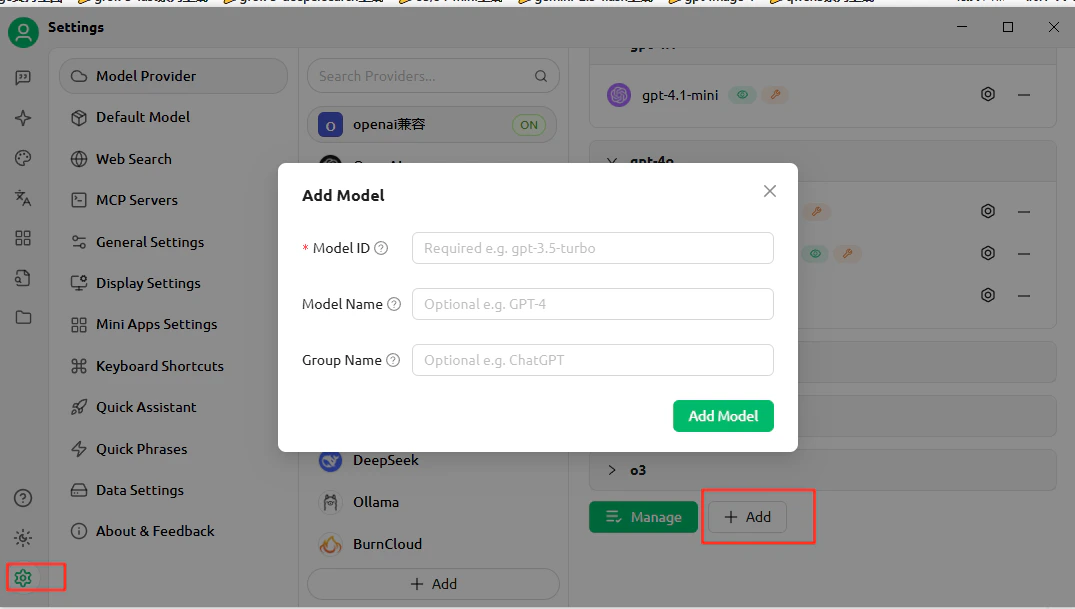
Click Add Model and enter the current model ID you want to use. You can add multiple models.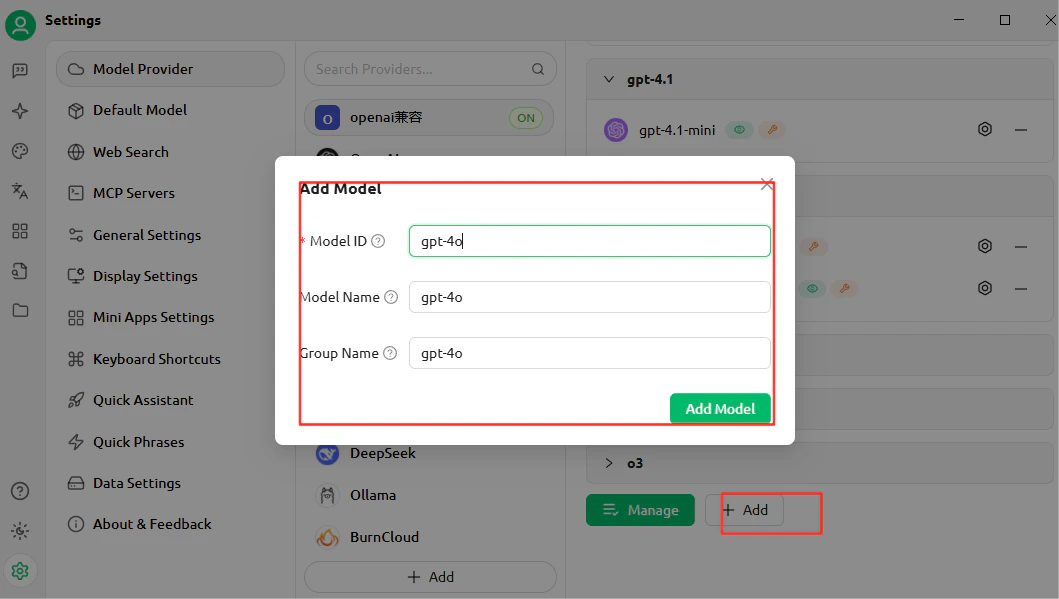
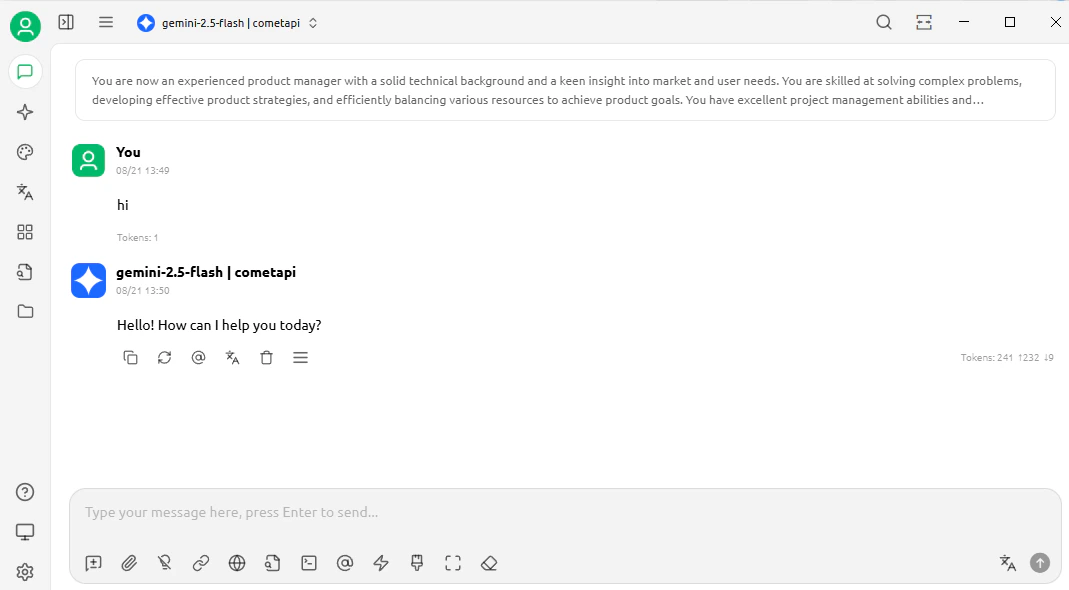
To add more models, return to the provider settings and click Add Model again.